
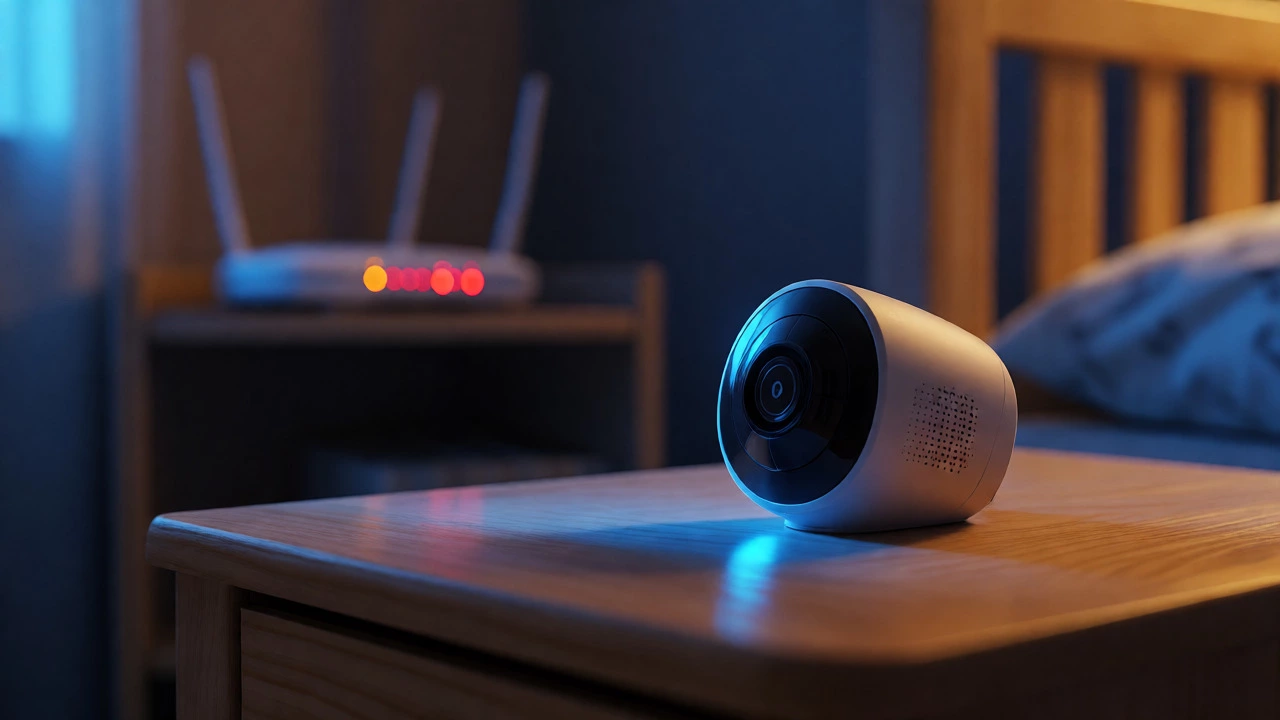
Wi-Fi Interference Simulator
Adjust the settings below to see how different configurations impact your estimated internet speed. This tool helps visualize why moving devices or changing frequencies can solve buffering issues.
Based on a baseline of 100 Mbps connection
You’re trying to stream a movie or join a video call, but the buffering wheel just won’t stop spinning. You check your router, restart it, and maybe even yell at it in frustration. But what if the culprit isn’t your provider? What if it’s the cute little device keeping an eye on your sleeping infant? It sounds like a myth, but baby monitors are notorious for causing radio-frequency interference with wireless internet connections, specifically when they operate on the same frequency band as your Wi-Fi. This isn't just anecdotal; regulatory bodies have flagged this issue since at least 2009, and technical experts continue to cite it as a primary cause of home network slowdowns today.
The problem is simple physics colliding with modern convenience. Most digital baby monitors transmit audio and video using radio waves. If those waves share the same "lane" as your Wi-Fi data, traffic jams happen. The result? Laggy games, pixelated Zoom calls, and slow downloads. But before you throw out your monitor, know that this is fixable. By understanding how these devices interact with your network, you can restore your internet speed without sacrificing peace of mind.
Why Your Baby Monitor Might Be Killing Your Wi-Fi
To understand the interference, you need to look at the invisible highway carrying your data: the radio spectrum. Most older and budget-friendly Wi-Fi routers broadcast on the 2.4 GHz frequency band. This band is popular because it travels through walls better than faster bands. However, it is also incredibly crowded. It hosts Bluetooth devices, cordless phones, microwave ovens, and yes, many digital baby monitors.
When your baby monitor transmits from the nursery, it emits energy in the 2.4 GHz range. If your router is also blasting data on that same frequency, the two signals compete for airtime. Think of it like two people trying to speak loudly in a small room. Neither gets heard clearly. In technical terms, the monitor raises the "noise floor," reducing the signal-to-noise ratio for your Wi-Fi clients. This forces your devices to retransmit packets, which kills throughput and increases latency. If you notice your internet slows down specifically when the monitor is active, you’ve likely found the source.
The Frequency Battle: 2.4 GHz vs. 5 GHz
Not all baby monitors are created equal, and neither are Wi-Fi networks. The severity of interference depends heavily on which frequency bands your devices use. Modern dual-band routers offer both 2.4 GHz and 5 GHz networks. The 5 GHz band offers higher speeds and less congestion because fewer household appliances use it. Unfortunately, many baby monitors still rely on 2.4 GHz because it has better range and penetrates walls more effectively-crucial features when the nursery is far from the parents' bedroom.
This creates a conflict. If your laptop connects to the 2.4 GHz band while your baby monitor is transmitting on the same channel, they interfere. However, if you move your critical devices (like your work laptop or streaming box) to the 5 GHz band, you physically separate their data path from the monitor’s noise. The monitor continues its job on 2.4 GHz, but your high-speed internet flows freely on 5 GHz. This separation is often the quickest way to solve performance drops without buying new hardware.
| Feature | 2.4 GHz Band | 5 GHz Band |
|---|---|---|
| Interference Risk | High (shared with microwaves, Bluetooth, most baby monitors) | Low (mostly used by modern Wi-Fi devices only) |
| Range & Penetration | Excellent (passes through walls easily) | Moderate (struggles with thick concrete/metal) |
| Speed Potential | Lower (more congested channels) | Higher (wider channels, less noise) |
| Best Use Case | Smart home sensors, baby monitors, long-range low-bandwidth needs | Streaming, gaming, video calls, large file transfers |

How to Diagnose Interference Issues
Before changing settings, confirm the diagnosis. Standard Wi-Fi scanners might not show your baby monitor because it doesn’t follow Wi-Fi protocols (802.11). It just looks like background noise. Here is a simple troubleshooting routine:
- The On/Off Test: Run a speed test on a device connected to your 2.4 GHz Wi-Fi. Note the results. Then, turn off the baby monitor completely. Run the test again. If speeds jump significantly, the monitor is the culprit.
- Channel Scanning: Download a free Wi-Fi analyzer app on your smartphone. These apps show which channels are busiest. If your router is on Channel 6, and your neighbor’s network plus your baby monitor are also pushing energy into Channel 6, you have a congestion problem.
- Proximity Check: Look at where your router sits. Is it within a few feet of the baby monitor unit? Close proximity exacerbates interference because the strong local signal from the monitor overwhelms the receiver sensitivity of nearby Wi-Fi clients.
If the monitor is the issue, don’t panic. You don’t necessarily need to replace it. Start with configuration tweaks.
Practical Fixes to Stop Interference
Once you’ve identified the interference, apply these strategies in order of ease and cost.
1. Increase Physical Separation
Radiation strength drops rapidly with distance. Keep your baby monitor and Wi-Fi router at least 8-10 feet apart. Avoid placing them on the same shelf or near large metal objects, which can reflect signals and create dead zones. Also, keep the monitor away from other interferers like microwaves or cordless phone bases.
2. Switch Wi-Fi Channels
In the 2.4 GHz band, only channels 1, 6, and 11 do not overlap. If your router is set to "Auto," it might be picking a crowded channel. Log into your router’s admin panel and manually set it to 1, 6, or 11-the one with the least activity according to your analyzer app. Some advanced baby monitors also allow channel selection. If yours does, ensure it’s not sitting on the exact same channel as your router.
3. Migrate Devices to 5 GHz
This is the most effective software fix. Connect your smartphones, laptops, and smart TVs to the 5 GHz SSID of your router. Leave legacy devices and the baby monitor on 2.4 GHz. This segregates your heavy-traffic devices from the noisy band. If your old devices don’t support 5 GHz, consider a cheap USB Wi-Fi adapter to upgrade them.
4. Consider Hardware Upgrades
If tweaks fail, look at the technology inside the monitor. Some monitors use Frequency-Hopping Spread Spectrum (FHSS), which jumps between frequencies to avoid sustained interference. Others are fixed-channel. If you are shopping for a new monitor, look for models that operate on 900 MHz (which doesn’t interfere with Wi-Fi at all) or dedicated DECT standards. Alternatively, some newer monitors connect directly to your home Wi-Fi via IP cameras; while these add load to the network, they don’t create external RF noise in the same way standalone RF monitors do.
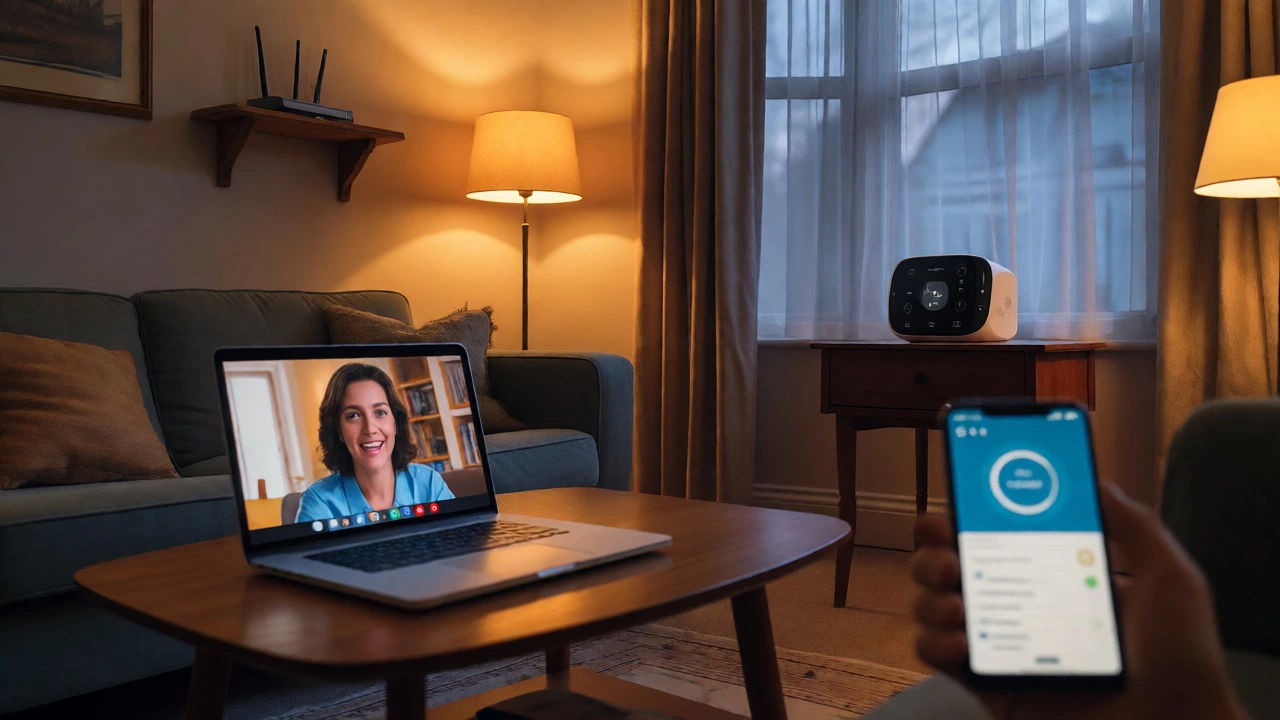
Understanding the Tech Behind the Noise
It helps to know what’s happening under the hood. Traditional analog baby monitors used FM radio, similar to car radios, which rarely interfered with digital Wi-Fi. Digital monitors changed the game. They compress audio/video into data packets transmitted over ISM (Industrial, Scientific, and Medical) bands. While efficient, they lack the sophisticated coordination protocols of Wi-Fi. Wi-Fi devices use CSMA/CA (Carrier Sense Multiple Access with Collision Avoidance) to talk politely. Baby monitors often just shout. When a monitor shouts on a channel, Wi-Fi devices must wait or retry, causing the lag you feel.
Regulatory reports, such as those from UK authorities years ago, highlighted that non-Wi-Fi devices like baby monitors and security cameras were significant contributors to urban Wi-Fi degradation. This isn't a defect in your specific product; it's a limitation of sharing a finite resource. As more IoT devices flood the 2.4 GHz space, managing this coexistence becomes essential for any smart home owner.
Frequently Asked Questions
Do all baby monitors interfere with Wi-Fi?
No. Monitors that use 900 MHz frequencies or certain proprietary DECT standards typically do not interfere with standard 2.4 GHz or 5 GHz Wi-Fi networks. Interference is primarily a concern with digital monitors operating on the 2.4 GHz ISM band.
Will turning off my baby monitor fix my internet speed?
If your monitor operates on the same 2.4 GHz channel as your Wi-Fi and is close to the router or client devices, turning it off will likely improve speed and stability. This is a good diagnostic step to confirm interference.
Does a 5GHz Wi-Fi network help with baby monitor interference?
Yes. Moving your internet-connected devices (laptops, phones, TVs) to the 5 GHz band separates their data traffic from the 2.4 GHz band used by most baby monitors. This prevents the monitor's radio signals from competing with your main internet usage.
Can I change the channel on my baby monitor?
Some digital baby monitors allow you to change transmission channels to avoid interference with neighboring networks or your own router. Check your user manual; if it supports channel switching, try setting it to a channel different from your router’s current setting.
Are Wi-Fi baby monitors worse than dedicated ones?
Wi-Fi baby monitors (IP cameras) add data load to your existing network rather than creating external RF noise. Dedicated monitors create RF interference but don't use bandwidth. If your internet is slow due to bandwidth limits, a Wi-Fi monitor might worsen it. If it's due to RF noise, a dedicated monitor might be the cause. Dedicated monitors are generally more reliable for real-time viewing.