
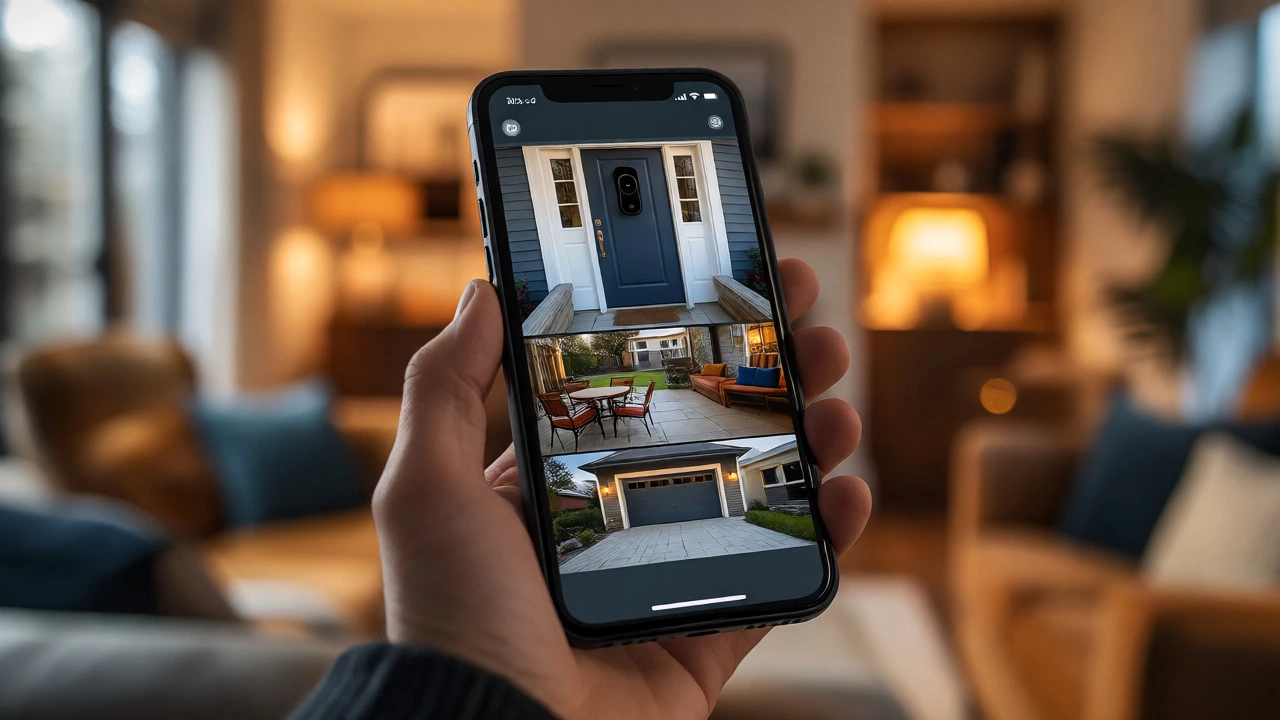
Security Camera App Finder
Select your camera brand and device type to see recommended apps and connection methods.
No specific recommendations found for this combination. Try selecting "All Brands" or checking universal viewers like tinyCam or IPCam.
You just bought a new security camera, or maybe you’re trying to consolidate five different brands into one view on your phone. You open the App Store, search for "camera viewer," and find hundreds of options. Which one actually works? The short answer is frustratingly simple: it depends entirely on what brand and type of camera you own. There is no single magic app that handles every device perfectly because manufacturers like Ring, Arlo, and Nest build proprietary walls around their ecosystems.
However, if you have standard IP cameras, there are powerful universal apps that can handle multiple brands at once. This guide breaks down exactly which app you need based on your specific hardware, whether you’re on Android or iOS, and whether you want simple viewing or advanced control.
The Golden Rule: Start With the Manufacturer’s App
Before you download anything else, check the label on your camera. If you have a Ring, Nest, Arlo, or Eufy device, the official app is usually mandatory for full functionality. These companies rely on cloud services for video storage, AI detection (like person or package alerts), and firmware updates. A generic third-party app often cannot access these features because they don’t live in the raw video stream; they live in the manufacturer’s server infrastructure.
For example, Google has split its ecosystem. Newer wired and battery-powered Nest Cam models require the Google Home app, while older IQ Indoor/Outdoor models still use the legacy Nest app. Using the wrong app means you might lose access to settings or subscription features. Similarly, Reolink users should stick to the Reolink App or Reolink Client for desktops. While Reolink supports ONVIF, their app is optimized for their specific NVRs and cloud plans, and mixing in third-party viewers can complicate troubleshooting if something breaks.
| Camera Brand | Primary App | Notes |
|---|---|---|
| Google Nest | Google Home / Nest App | Newer models use Google Home; older IQ models use Nest App. |
| Ring | Ring App | Required for doorbell chimes and Alarm Pro integration. |
| Reolink | Reolink App / Client | Best for local NVR management; ONVIF supported but limited in 3rd party apps. |
| Hikvision / HiLook | Hik-Connect | Official app for P2P remote view; excellent for PTZ control. |
| Dahua / Imou | DMSS / Imou Life | DMSS is robust for prosumer kits; Imou Life for consumer Wi-Fi cams. |
| TP-Link Tapo | Tapo App | Simple interface; supports basic ONVIF/RTSP for advanced users. |
| Wyze | Wyze App | Cloud-dependent; RTSP only available on specific older models/firmware. |
Universal Viewers for Mixed-Brand Setups
If you have a mix of Hikvision, Dahua, Amcrest, or Axis cameras, juggling four different apps is annoying. This is where universal viewers shine. They connect directly to the camera’s network stream using standards like ONVIF (Open Network Video Interface Forum) or RTSP (Real Time Streaming Protocol). These protocols allow any compatible software to display the video feed without needing the manufacturer’s cloud account.
For Android users, tinyCam Monitor is widely considered the gold standard. It supports MJPEG, MPEG-4, H.264, H.265, RTSP, and ONVIF. The free version lets you view up to four cameras simultaneously, which is plenty for most homes. The PRO version expands this to 25 cameras and adds automation features, such as recording motion events locally to your phone or triggering actions when a camera sees movement. It’s not just a viewer; it’s a lightweight surveillance hub.
On iOS and macOS, IPCam is the go-to choice. It works across iPhone, iPad, Mac, Apple TV, and even Apple Watch. IPCam connects directly to your cameras over Wi-Fi or cellular data (if port-forwarded) without routing video through a third-party cloud server. This means lower latency and better privacy. Another strong contender is RTSP Viewer, which offers automatic ONVIF discovery, making setup easier if you aren’t sure about your camera’s IP address or port numbers.
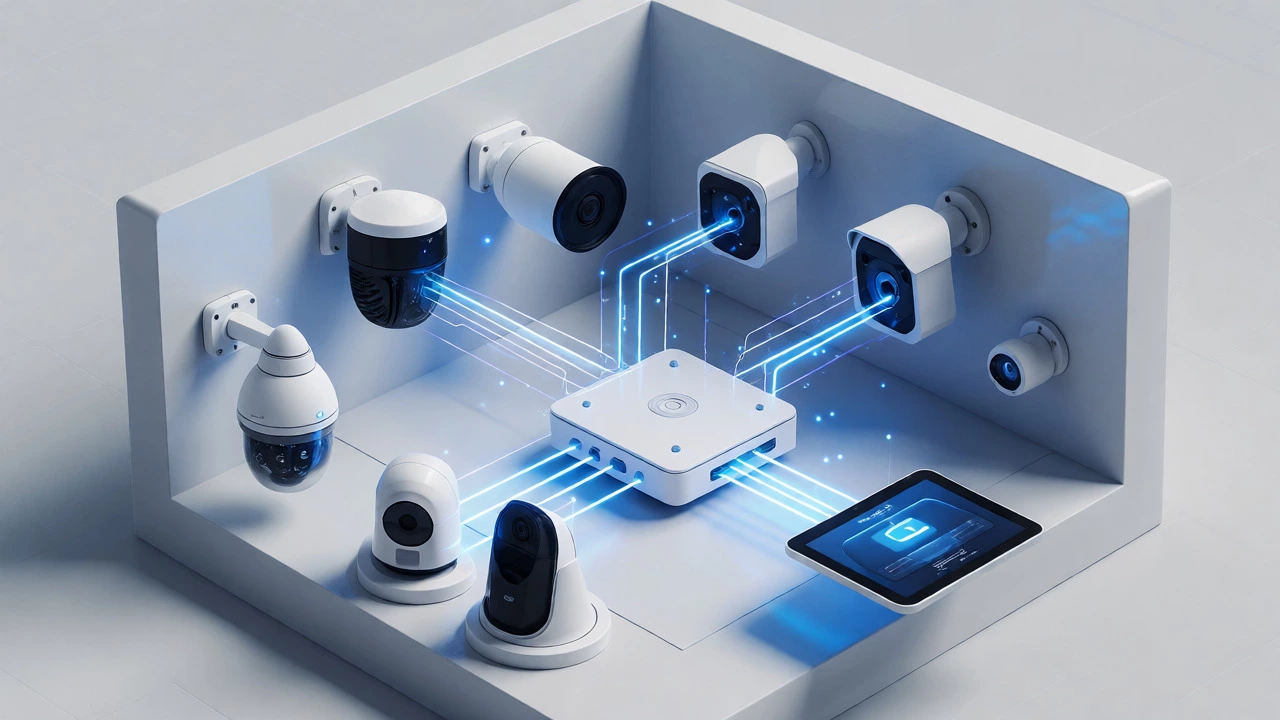
How to Connect: ONVIF vs. RTSP vs. Cloud
Understanding the connection method helps you troubleshoot why an app isn’t working. Most modern IP cameras support ONVIF Profile S. This standard ensures that basic video streaming and PTZ (pan-tilt-zoom) controls work between different brands. However, ONVIF does not guarantee that advanced features like face recognition or two-way audio will work in a third-party app. Those are often proprietary extensions.
RTSP is another common protocol. It’s essentially a URL that points to the video stream, looking something like rtsp://192.168.1.50:554/stream1. If you know this URL, you can plug it into almost any player, including VLC Media Player on your computer. VLC is great for quick tests-if you can see the video in VLC, the camera is working, and the issue lies with your mobile app’s configuration. But VLC isn’t a security system; it won’t send push notifications or record clips automatically.
Then there’s the cloud relay used by consumer brands like Wyze or Blink. These cameras often don’t expose a direct local IP address or RTSP stream by default. To use them with a universal app, you might need to flash custom firmware (for some Wyze models) or accept that you’ll only get basic live view without smart alerts.
Advanced Users: Home Assistant and NVRs
If you want to integrate your cameras into a broader smart home system, Home Assistant is the ultimate platform. It’s an open-source home automation hub that runs on a Raspberry Pi or a dedicated server. Home Assistant has native integrations for ONVIF and RTSP, allowing you to display camera feeds on dashboards, trigger lights when motion is detected, or even run local AI object detection using tools like Frigate.
The trade-off is complexity. Setting up Home Assistant requires knowing your camera’s local IP address, creating a separate ONVIF user account on the camera (distinct from the admin password), and ensuring your firewall allows traffic between devices. It’s not for the faint of heart, but for tech-savvy homeowners, it offers unmatched control and privacy since all processing happens locally.
Security Pitfalls to Avoid
When you switch from a manufacturer’s cloud app to a direct connection app, you take on more security responsibility. Many universal apps default to unencrypted HTTP or RTSP connections. If you port-forward your camera’s RTSP port directly to the internet so you can view it from work, anyone scanning the web could potentially see your footage unless you use strong authentication.
Always change the default username and password immediately after setting up a new camera. Disable unused accounts and services in the camera’s web interface. For remote access, prefer a VPN (Virtual Private Network) or the manufacturer’s secure cloud relay over opening ports on your router. A generic app that accepts only unencrypted streams is risky for sensitive areas unless your network is properly segmented.
Future-Proofing: ONVIF Profile T
Technology moves fast. In late 2025, ONVIF announced the deprecation of Profile S in favor of Profile T. Profile T focuses on modern streaming methods, better compression efficiency, and enhanced security features. Existing Profile S cameras won’t stop working, but new purchases should ideally support Profile T for better long-term compatibility with newer apps and NVRs. If you’re buying a new IP camera today, check the spec sheet for "ONVIF Profile T" support.
Can I use one app for all my security cameras?
Only if all your cameras support standard protocols like ONVIF or RTSP. Proprietary cloud-based cameras like Ring, Arlo, or Nest typically require their own specific apps for full functionality, especially for notifications and cloud storage. You can use a universal app for live viewing, but you may lose smart features.
What is the best free app for Android security cameras?
tinyCam Monitor is highly recommended for Android. The free version supports up to four simultaneous cameras via RTSP, ONVIF, and other protocols. It provides reliable live viewing and basic recording capabilities without requiring a subscription.
Why doesn't my third-party app show motion alerts?
Motion alerts are often processed by the camera's firmware or the manufacturer's cloud service. Generic apps like tinyCam or IPCams primarily handle video streams. Unless the app specifically implements the camera's event API (which varies by brand), you will likely only see live video, not push notifications for motion.
Do I need a subscription to use a universal camera app?
No. Universal apps like tinyCam Monitor, IPCams, and VLC do not require monthly subscriptions to view your cameras. They connect directly to your local network. However, if you want to record video to the cloud or keep history off-site, you might need a separate cloud storage service or a local NVR.
Is it safe to expose my security camera to the internet?
It can be risky if not configured correctly. Direct exposure via port forwarding requires strong passwords and updated firmware. A safer approach is using a vendor's encrypted cloud relay or connecting remotely via a personal VPN, which keeps your camera hidden behind your router's firewall.