
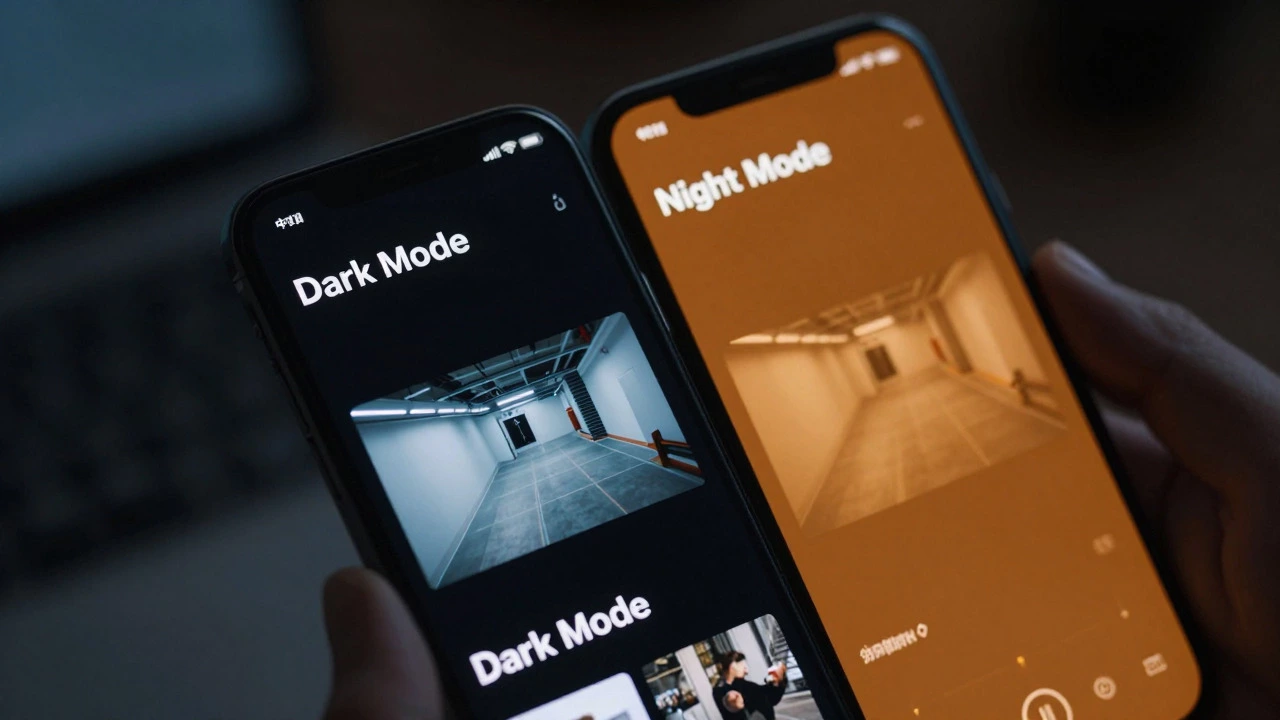
Security Camera Display Settings Simulator
📱 Interface Theme
Current: Light Background
Controls the base colors of buttons, menus, and text backgrounds.
🎨 Color Temperature
Current: Cool White (6500K)
Filters screen output to reduce blue light wavelengths.
💡 Impact on Security Monitoring
- • Text Legibility: High - Best for reading license plates and details
- • Eye Strain in Dark Rooms: Moderate - Bright interface may cause glare
- • Color Accuracy: Excellent - True representation of camera feed
- • Battery Usage (OLED): Higher - More pixels illuminated
Have you ever stared at your phone or tablet settings, trying to figure out if dark mode and night mode are just two names for the same thing? It is a common point of confusion. On one hand, you have the sleek black interface that saves battery life. On the other, you have the warm, orange-tinted screen that supposedly helps you sleep. But when it comes to security cameras devices used for surveillance and monitoring home or business premises, the distinction becomes even more critical-and often misunderstood.
The short answer is no, they are not the same. While tech giants like Apple and Google sometimes blur the lines in their marketing, these features operate on completely different principles. Dark mode changes the colors of your user interface. Night mode (or night shift) changes the color temperature of your screen to reduce blue light. And then there is the third player in this game: the actual camera sensor technology that lets you see in the dark. Let's break down exactly what each feature does, why the naming is so messy, and how it affects your ability to monitor your property safely.
The Core Difference: Interface vs. Spectrum
To understand the difference, we need to look at what each feature actually modifies. Dark mode a user interface theme that uses light-colored text and icons on a dark background is purely about contrast polarity. Think of it as flipping a coin. In standard "light mode," you have dark text on a white background. In dark mode, you have light text on a black or dark gray background. This change happens at the software level, specifically within the app or operating system's design language.
Night mode a display feature that reduces blue light emission by shifting color temperature to warmer tones, however, works differently. It does not invert your colors. Instead, it acts as a filter over your entire screen. It shifts the color spectrum from cool, daylight-like whites (around 6500 Kelvin) to warmer, amber hues (closer to 3000-4000 Kelvin). The goal here isn't aesthetics; it's biology. By reducing the amount of high-energy visible blue light-which peaks between 400 and 500 nanometers-night mode aims to minimize melatonin suppression, helping your body recognize that it is time to sleep.
This means you can have dark mode without night mode (a black screen with crisp, cool white text), or night mode without dark mode (a white screen that looks like old parchment paper). Most modern devices allow you to run both simultaneously, giving you a dark interface with a warm tint for late-night scrolling.
Why the Confusion Exists
If the technical definitions are clear, why do people mix them up? The blame lies largely with inconsistent branding across the tech industry. Wikipedia and various tech blogs often list "night mode" as a synonym for dark mode. Some Android manufacturers, particularly older versions of Samsung or Xiaomi skins, labeled their dark UI themes as "Night Mode." This created a habit where users associated the word "night" with "black background."
However, UX experts and designers insist on keeping them separate. As noted by the Interaction Design Foundation, conflating the two leads to poor user experience. If you want a dark theme because you find bright screens glaring in a dim room, you need dark mode. If you want to protect your circadian rhythm before bed, you need night mode. They solve different problems. One is visual comfort through contrast; the other is physiological health through spectral adjustment.
Night Mode in Security Cameras: A Different Beast
Now, let's pivot back to the context that matters most for this discussion: night vision cameras surveillance devices equipped with infrared sensors to capture images in low-light conditions. Here, the term "night mode" takes on an entirely new meaning that has nothing to do with blue light filters or UI themes.
In the world of CCTV and home security, "night mode" refers to the camera's ability to switch to infrared (IR) imaging when ambient light drops below a certain threshold. During the day, your camera captures color video using visible light. As the sun sets, the camera's internal sensor detects the lack of photons. It then activates IR LEDs-small lights around the lens that emit invisible infrared light-and switches the image processor to monochrome mode. The result is the classic grainy, black-and-white footage you see in police dramas.
This is fundamentally different from the "night mode" on your smartphone screen. Your phone's night mode makes the screen yellower. Your security camera's night mode makes the footage grayscale and allows it to "see" in total darkness. Confusing these two can lead to frustration. For example, enabling "night mode" on your phone app won't make your camera work better in the dark; it just makes the app interface harder to read if you're doing color-critical tasks like identifying a car's paint job.
Comparing the Features Side-by-Side
To clarify the distinctions, let's look at how these features compare across different contexts. This table breaks down the primary function, mechanism, and typical use case for each mode.
| Feature | Primary Function | Mechanism | Impact on User |
|---|---|---|---|
| Dark Mode (UI) | Visual comfort & battery saving | Inverts color palette (light text on dark bg) | Reduces glare, may save OLED battery |
| Night Mode (Display) | Sleep hygiene & eye strain reduction | Filters blue light, warms color temperature | Helps maintain circadian rhythm |
| Night Vision (Camera) | Low-light surveillance | Activates IR LEDs, switches to monochrome | Enables visibility in total darkness |
Notice that the camera's night vision is the only one of these three that actually enhances data collection in the dark. The other two are purely about how you consume that data on your personal device.
Does Dark Mode Help You Spot Intruders?
A common question among homeowners is whether switching their security app to dark mode improves their ability to spot threats. The answer is nuanced. Research from the Nielsen Norman Group suggests that for most users with normal vision, reading performance and accuracy are actually better in light mode (positive contrast polarity). Dark text on a white background provides higher legibility for small details, such as license plate numbers or facial features.
However, dark mode has its place. If you are reviewing footage in a pitch-black bedroom, a bright white app interface can cause significant eye strain and temporary blindness when you look away. In this scenario, dark mode reduces the overall luminance hitting your eyes, making the viewing experience more comfortable. Just be aware that the lower contrast might make it slightly harder to discern fine details in the video feed itself. Many experts recommend keeping your camera feed in its native brightness while using dark mode for the surrounding app interface-a compromise that balances comfort with clarity.
Practical Tips for Home Security Users
So, how should you configure your devices for the best security experience? Here are some practical steps based on current best practices:
- Separate Your Settings: Don't assume one toggle controls everything. Go into your phone's display settings and ensure "Night Shift" (or "Eye Comfort Shield") is scheduled to activate at sunset. Separately, set your preferred UI theme to "Dark" if you prefer it aesthetically.
- Check Camera IR Cut Filters: Ensure your security cameras have a functioning IR cut filter. This mechanical component blocks infrared light during the day (preserving color accuracy) and removes it at night (allowing IR light to hit the sensor). If your daytime footage looks purple or hazy, this filter might be stuck.
- Use Color Night Vision When Possible: Modern high-end cameras offer "Color Night Vision" using powerful white-light LEDs or starlight sensors. These provide full-color footage at night but act like a spotlight, potentially alerting intruders. Decide if stealth (IR black-and-white) or identification (color) is more important for your specific location.
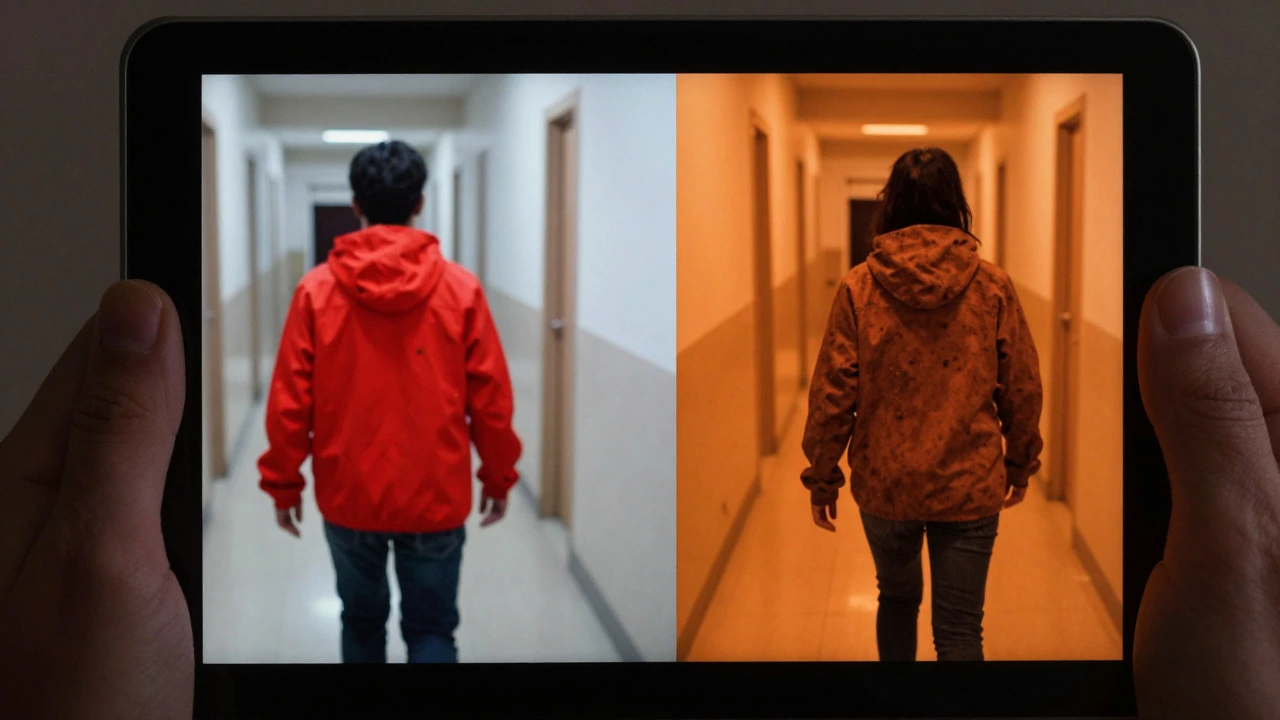
- Avoid Over-Filtering: If you use a strong blue-light filter on your phone, be cautious when checking live feeds. The warm tint can distort colors, making it difficult to accurately identify clothing colors or vehicle paints. Consider turning off the display night mode temporarily when reviewing critical evidence.
The Future of Low-Light Monitoring
As technology advances, the lines between these modes may continue to blur in terms of automation, but their functions will remain distinct. We are seeing a rise in adaptive systems that use ambient light sensors to automatically switch camera modes and adjust app interfaces. Imagine a setup where your phone detects you are lying in bed at night; it automatically switches the security app to dark mode, enables the blue-light filter, and prioritizes motion alerts over continuous video streaming to preserve battery and attention.
For now, understanding the difference between dark mode, night mode, and night vision is crucial for anyone serious about home security. Knowing which tool to use ensures you aren't just looking at a pretty interface, but actually getting the clearest possible view of your property, day or night.
Is dark mode better for battery life on security cameras?
Dark mode primarily affects the device displaying the footage (your phone or tablet), not the camera itself. On OLED screens, dark mode can significantly extend battery life because black pixels are turned off. However, it has little to no impact on the power consumption of the security camera unit, which relies on its own sensor efficiency and compression algorithms.
Can I use night mode on my phone to see better in the dark?
Not exactly. Night mode on your phone (blue light filter) makes the screen warmer and easier on your eyes, but it doesn't enhance the image quality of the camera feed. To see better in the dark, you need a security camera with effective night vision capabilities, such as infrared LEDs or starlight sensors, not a filter on your viewing device.
Why does my security camera turn black and white at night?
This is due to the activation of infrared (IR) night vision. Visible light cameras struggle in low light. By switching to monochrome mode and using IR LEDs, the camera captures reflected infrared light, which is invisible to the human eye but highly sensitive to the camera sensor. This provides a clear, high-contrast image in total darkness.
Should I keep dark mode on all the time for my security app?
It depends on your environment. If you mostly check your cameras in well-lit areas, light mode may offer better text legibility and detail recognition. If you frequently review footage in dim rooms or at night, dark mode reduces eye strain. Many users prefer to schedule dark mode to activate automatically during evening hours.
Does night mode on my phone affect the color accuracy of my camera feed?
Yes. Because night mode adds a warm, amber tint to your screen to reduce blue light, it can distort the true colors of the video feed. This might make it difficult to accurately identify colors like red or blue. For precise color verification, consider temporarily disabling night mode on your display.