
CCTV Direct-to-TV Setup Guide
Select your camera type below to see the step-by-step connection instructions tailored for your specific hardware.
Analog Camera
Old-school coaxial cables with round BNC connectors.
Low CostWireless Kit
Proprietary receiver-based systems without Wi-Fi dependency.
No CablesIP Camera
Modern network cameras connected via Ethernet or Wi-Fi.
High DefStep-by-Step Connection
Key Details
- Best For:
- Complexity:
- Recording:
- Equipment Needed:
Do you really need that expensive Digital Video Recorder (DVR) sitting in your closet gathering dust? If your only goal is to see what’s happening outside your front door or inside your shop right now, the answer is usually no. Connecting a CCTV camera a surveillance device that captures video footage for monitoring purposes directly to your television is not only possible but often simpler and cheaper than setting up a full recording system.
This guide breaks down exactly how to bypass the recorder entirely. Whether you are dealing with old-school analog cameras, modern IP cameras, or a brand-new wireless cctv kit a security system where cameras transmit video signals via radio frequency rather than cables, there is a direct path from lens to screen. Let’s look at the three main ways to make this happen without buying extra hardware you don’t need.
The Analog Method: Using a BNC-to-HDMI Converter
If you have traditional analog cameras-the kind with thick coaxial cables and round BNC connectors-you cannot plug them straight into an HDMI port on your TV. The languages they speak are different. However, you can translate the signal using a simple adapter.
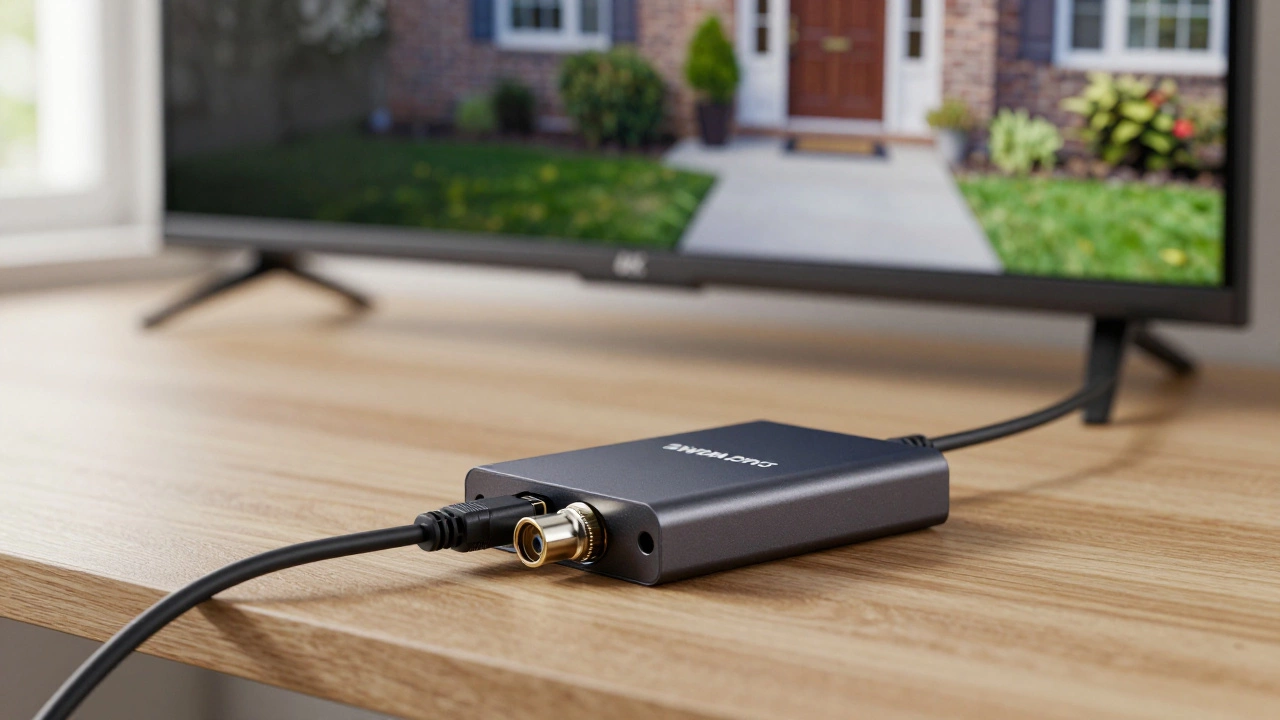
The most reliable tool for this job is a BNC-to-HDMI converter an electronic device that converts analog video signals from BNC connectors into digital HDMI signals compatible with modern televisions. This small box takes the raw video feed from your camera and converts it into a format your TV understands instantly.
- Power the camera: Plug your camera’s power adapter into a nearby outlet. Wait a few seconds for the camera’s LED light to stabilize, indicating it is active.
- Connect the video cable: Take the BNC end of your Siamese cable (the combined power/video cable) and plug it into the BNC input on the converter.
- Bridge to the TV: Use a standard HDMI cable to connect the converter’s HDMI output to an available HDMI port on your television.
- Switch inputs: Grab your TV remote and switch the source to the corresponding HDMI channel.
That’s it. You should see a live feed immediately. No software installation, no internet setup, and no complex menus. This method works best if you just want a dedicated monitor for real-time viewing. Keep in mind that because there is no DVR, nothing is being saved. If you look away from the TV, that moment is gone forever.
The Wireless Route: Receiver-Based Kits
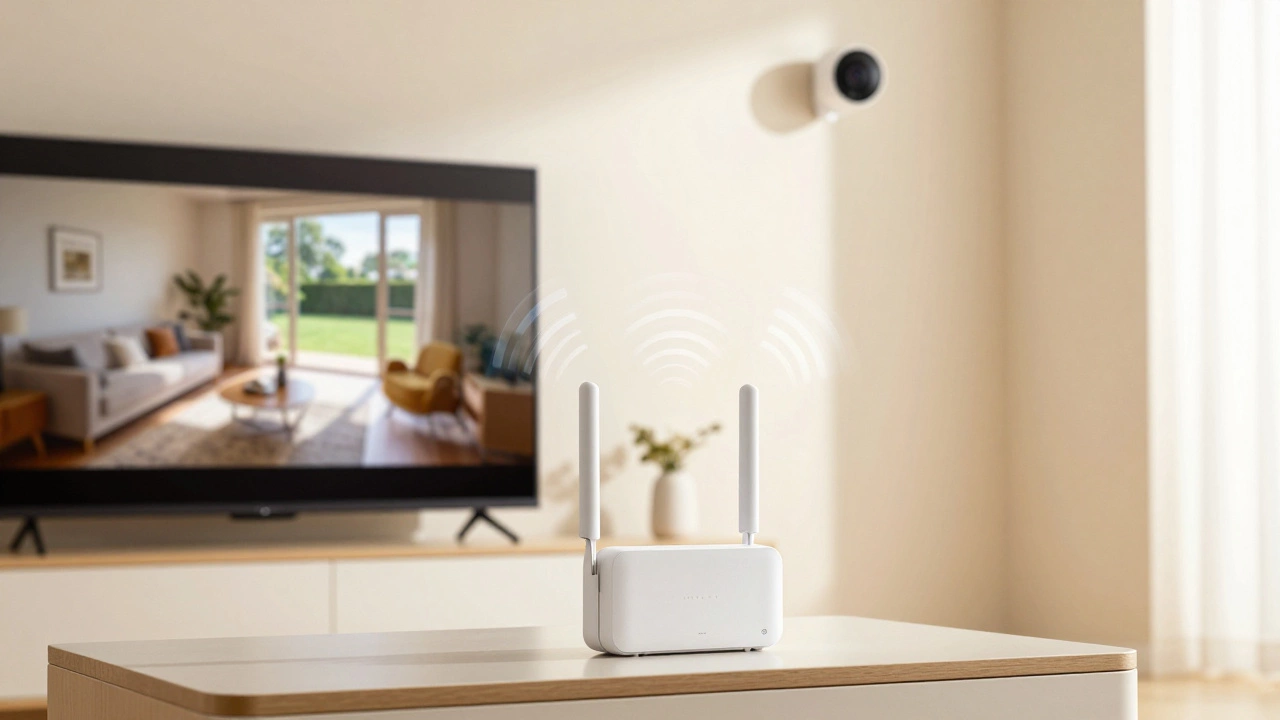
If you are starting from scratch or upgrading to a wireless cctv kit, you might find this the easiest option. These systems typically come with a receiver unit designed specifically to bridge the gap between the camera and your display.
Unlike Wi-Fi cameras that rely on your home network, these proprietary wireless kits use their own frequency. Here is how you set them up:
- Plug in the receiver: Locate the small box included with your kit. Connect its power supply to an outlet near your TV.
- Connect to the display: Most receivers offer either RCA (yellow/red/white plugs) or HDMI outputs. Connect this to your TV.
- Power the camera: Place your camera in the desired location and plug it in.
- Synchronize: Once both devices are powered, the receiver will automatically search for the camera signal. Switch your TV input to match the receiver’s connection type.
This approach eliminates cable clutter entirely. It is perfect for renters who cannot drill holes for long runs of coaxial cable. Just ensure the receiver stays within range of the camera; walls and metal objects can weaken the signal, causing static or dropouts on your screen.
The IP Camera Approach: Streaming via Smart TV Browser
Modern IP cameras Internet Protocol cameras that send and receive data over an IP network connect to your router, not directly to your TV. To view them on a television without a Network Video Recorder (NVR), you need to treat your smart TV like a computer.
Most major brands, including Hikvision and Dahua, provide free software that allows standalone viewing. Here is the workflow for getting that feed onto your big screen:
- Network Connection: Ensure your IP camera is connected to your Wi-Fi or plugged into your router via Ethernet.
- Find the IP Address: Open the manufacturer’s mobile app or check your router’s admin page to find the camera’s local IP address (e.g., 192.168.1.50).
- Open TV Browser: Launch the web browser on your smart TV. Type in the camera’s IP address.
- Login: Enter the username and password for the camera. Pro tip: Change the default password immediately to prevent unauthorized access.
- View Stream: The live video should load directly in the browser window.
This method requires a stable internet connection and a smart TV with a functional browser. Some older smart TVs may struggle to render the stream smoothly, resulting in lag. If your TV lacks a browser, you might need to use a streaming stick like a Fire Stick or Chromecast as an intermediary.
| Method | Best For | Complexity | Recording Capability |
|---|---|---|---|
| Analog + Converter | Existing analog setups | Low | None |
| Wireless Kit | New installations, renters | Low | None (unless SD card supported) |
| IP Camera + Smart TV | High-definition needs | Medium | Depends on camera features |
Important Limitations to Consider
Before you skip the DVR purchase, ask yourself one critical question: Do you need proof later? Direct connections provide live view only. There is no history. If a package thief strikes while you are asleep, you won’t have footage to show the police unless you manually recorded the TV screen with another device.
If archival is important, consider cameras with built-in micro-SD card slots. Many IP cameras and some wireless models allow local storage. You can still view the live feed on your TV, but the camera saves the clips locally. You would then retrieve the card to review past events.
Troubleshooting Common Issues
Sometimes the picture doesn’t appear, or the quality looks poor. Here are quick fixes based on common scenarios:
- No Signal on HDMI: Check if the BNC-to-HDMI converter has its own power supply. Many converters require external power to function; they do not draw enough energy from the HDMI port alone.
- Laggy IP Stream: Your Wi-Fi bandwidth might be congested. Try connecting the camera via Ethernet cable instead of Wi-Fi to reduce latency.
- Static on Wireless Feed: Move the receiver closer to the camera or remove physical obstructions like thick concrete walls between them.
Can I connect multiple CCTV cameras to one TV without a DVR?
Yes, but it requires more hardware. For analog cameras, you can use a multi-input BNC-to-HDMI converter that supports splitting feeds (e.g., 4-in-1). For IP cameras, you can open multiple browser tabs on your smart TV, though this may slow down performance. Wireless kits often include receivers that support multiple cameras simultaneously, displaying them in a grid layout.
Is it safe to leave my IP camera logged in on the TV browser?
It is generally safe if you have changed the default password and your home network is secured with WPA2 or WPA3 encryption. However, leaving the browser open constantly consumes bandwidth and keeps the camera active. For better security, close the browser when not in use.
What if my TV only has RCA inputs and no HDMI?
You can use a BNC-to-RCA converter instead of a BNC-to-HDMI converter. Connect the yellow RCA plug to the video input on your TV. Note that you will lose high-definition quality, as RCA is a standard definition analog signal.
Do wireless CCTV kits need Wi-Fi to work?
Not necessarily. Proprietary wireless kits operate on their own dedicated frequency between the camera and the receiver, independent of your home Wi-Fi network. However, Wi-Fi-enabled IP cameras do require a network connection to stream to a smart TV.
Why is my analog camera image black and white on the TV?
This usually indicates a grounding issue or incorrect cable shielding. Ensure the BNC connector is tightly screwed in. Also, check if the camera is in night mode due to low lighting conditions. If the problem persists, try a different BNC-to-HDMI converter to rule out hardware failure.