
Phone Security Camera Setup Wizard
Answer three quick questions to find the right app for your needs, then follow our checklist to set it up securely.
1. What is your primary goal?
Easy & Remote
I want to check in on pets/baby from anywhere with minimal setup.
AlfredCameraPrivacy First
I only need local viewing and don't want cloud servers seeing my feed.
IP Webcam (Android)iPhone User
I have an iPhone/iPad spare and want simple integration.
Manything / AlfredRecommended App:
Why:
2. Secure Setup Checklist
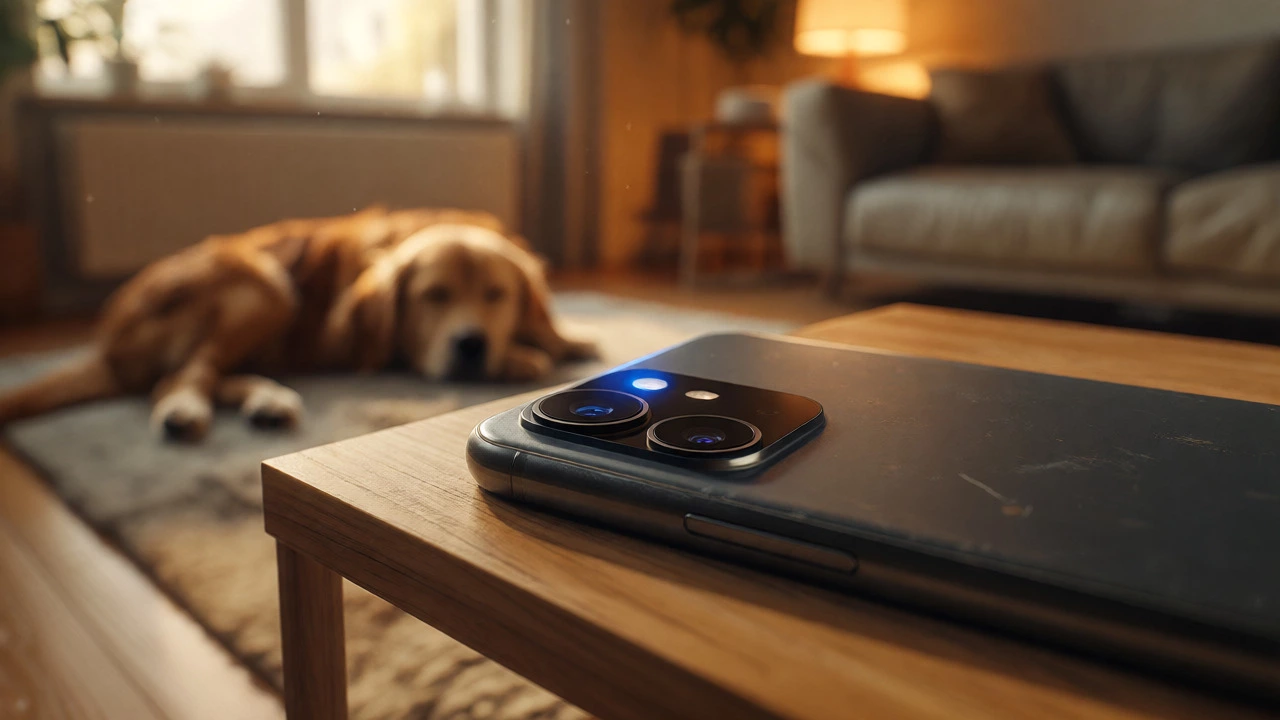
You probably have one sitting in a drawer right now. That cracked-screen Android or the iPhone you upgraded last year isn't e-waste-it's a high-definition, Wi-Fi-enabled surveillance system waiting to be activated. You don't need to buy a new wireless cctv kit to keep an eye on your pets, monitor a baby, or watch for package thieves. With the right app, that old device becomes a fully functional security camera for zero hardware cost.
But here is the catch: "free" usually means trade-offs. You might deal with ads, lower resolution, or limited cloud storage. And setting it up incorrectly can turn your convenience into a privacy nightmare. This guide cuts through the noise to show you exactly how to repurpose your phone, which apps actually work without forcing a credit card entry, and how to secure the connection so you aren't streaming your living room to strangers.
The Quick Fix: Why AlfredCamera Is the Default Choice
If you want this done in ten minutes with minimal fuss, start with AlfredCamera. It is a cross-platform app that turns spare phones into security cameras, offering live viewing and motion alerts for free. Unlike many competitors that lock key features behind paywalls immediately, Alfred’s free tier is genuinely usable. It allows up to two active cameras, provides basic motion detection, and lets you download event clips directly to your main device.
The setup is intuitive because it separates roles clearly. You install the app on the old phone (the "Camera") and your current phone (the "Viewer"). They connect via a Google account, Apple ID, or email. Once paired, you mount the old phone, plug it into power, and you are done. The interface handles the heavy lifting of connecting over Wi-Fi and sending push notifications when movement is detected.
Is it perfect? No. The free version includes ads, limits video quality to basic resolution, and doesn't offer AI person detection (which filters out shadows and leaves). But for checking if the dog chewed the sofa or if the mail carrier dropped off a parcel, it is unbeatable value. If you find yourself wanting HD clarity or ad-free viewing later, Premium costs about $3-$6 a month, but you never have to commit to that upfront.
For the Tech-Savvy: Local Control with IP Webcam
Not everyone wants their footage routed through a third-party server. If you prioritize privacy and local network control, IP Webcam is an Android application that streams video directly to your local network without requiring internet access or cloud subscriptions. This tool turns your Android device into a network camera accessible via any web browser or media player like VLC.
The workflow is more manual. You launch the app, configure settings like resolution and frame rate, and hit "Start Server." The app displays a local IP address (e.g., http://192.168.1.50:8080). You type this address into a browser on another device connected to the same Wi-Fi, and you see the live feed. Because the stream stays inside your router, there is no latency from cloud servers and no risk of a vendor seeing your footage.
However, remote access is tricky. To view the camera while away from home, you need a VPN or port forwarding. Port forwarding exposes a specific port on your router to the public internet, which requires strong passwords and careful configuration to avoid hacking risks. A safer bet for most users is to use IP Webcam only when at home, or pair it with a secure home VPN service. It also lacks the polished push-notification experience of Alfred; you are mostly monitoring actively rather than receiving alerts.
Comparison: Choosing the Right App for Your Needs
Since different apps serve different purposes, picking the wrong one leads to frustration. Here is how the top contenders stack up against each other.
| App Name | Best For | Free Tier Limits | Platform Support | Remote Access |
|---|---|---|---|---|
| AlfredCamera | General home monitoring, beginners | Ads, basic resolution, 2 cameras | iOS & Android | Via Cloud (Easy) |
| IP Webcam | Privacy-focused, local network users | None (fully free), manual setup | Android Only | Requires VPN/Port Forwarding |
| WardenCam | Users with existing cloud storage | Limited live time, uses Drive/Dropbox | Android Only | Via Cloud Accounts |
| Manything | iPhone/iPad owners | 1 camera, limited history | iOS Only | Via Cloud (Easy) |
| DroidCam | PC webcam replacement | SD quality, watermarks in Pro mode | Android/iOS to PC | Local Network/USB |
Notice the distinction between WardenCam and others. WardenCam is excellent if you already have ample space on Google Drive or Dropbox. It records motion events directly to these clouds, meaning you own the files. However, its continuous 24/7 recording often pushes users toward a premium upgrade, whereas Alfred’s event-based recording fits comfortably within the free tier.
Step-by-Step Setup: From Drawer to Watchlist
Turning on the app is just step one. Physical placement and power management determine whether your setup lasts a week or a year. Follow this checklist to ensure stability.
- Prepare the Device: Factory reset the old phone if possible. Remove unnecessary apps to save battery and processing power. Ensure the operating system is updated; Alfred requires Android 5+ or iOS 13+.
- Install and Configure: Download your chosen app. On the "Camera" phone, sign in and select "Camera Mode." On your main phone, sign in with the same account and select "Viewer Mode." Grant all requested permissions (camera, microphone, location) unless you specifically want to disable audio for privacy.
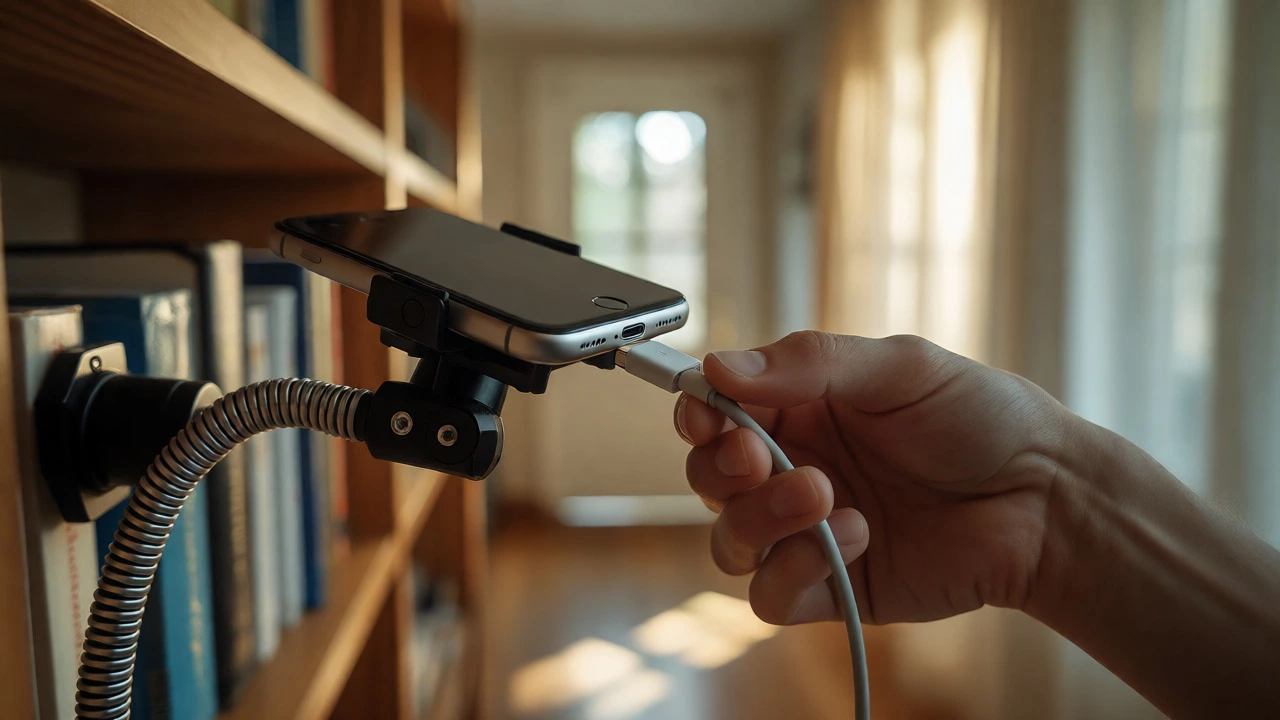
- Mount Securely: Use a dedicated phone stand or clamp. Avoid placing the phone flat on a table where it can slide. Position the lens to cover the area of interest-doorways, pet crates, or driveways. Remember: phone cameras have fixed focal lengths. Move the phone closer to get a wider field of view, or further back for detail.
- Power Management: Video streaming drains batteries fast. Plug the phone into a wall charger using a high-quality cable. Do not rely on power banks for long-term setups; they add heat and potential failure points. Keep the phone out of direct sunlight to prevent overheating, which can throttle performance or shut down the device.
- Test Remote Access: Before leaving the house, turn off Wi-Fi on your main phone (use cellular data) and try to view the feed. If it works, you are ready. If not, check your router settings or app connectivity status.
Security Pitfalls: Don't Let 'Free' Cost You Privacy
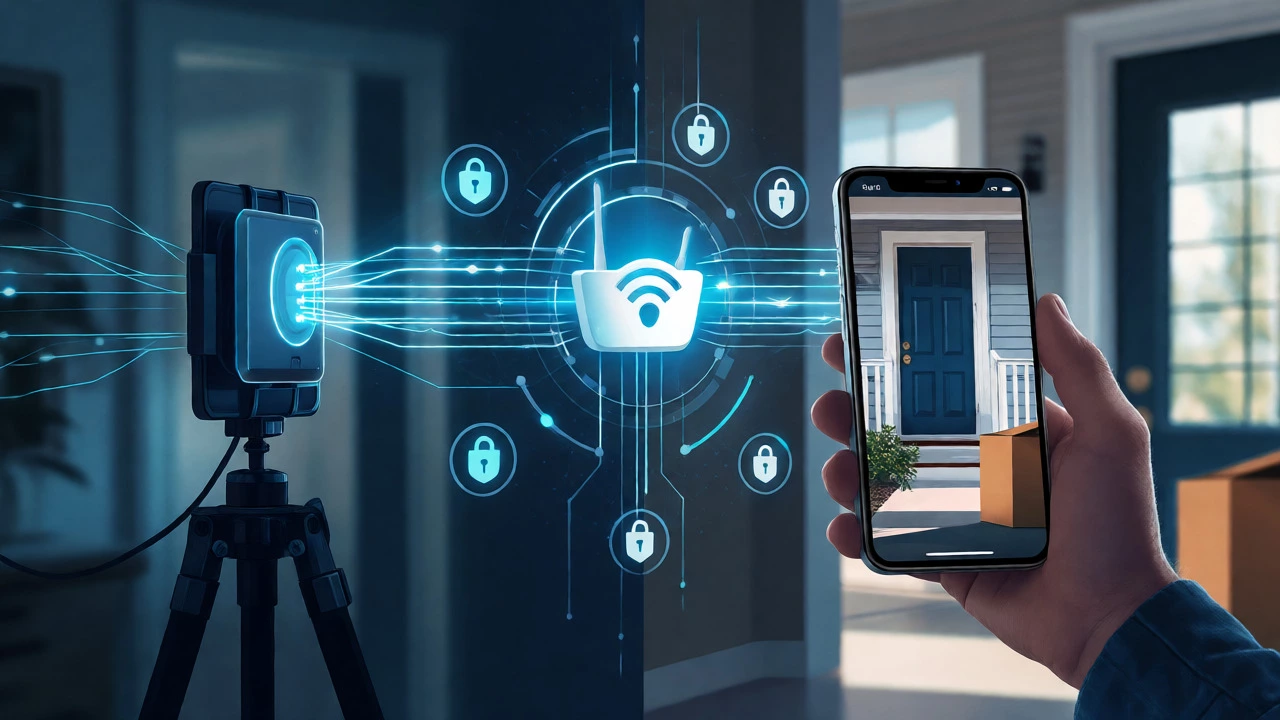
Adding a camera and microphone to your home network expands your attack surface. The U.S. Federal Trade Commission warns that default settings on smart devices are often insecure. When you use a phone as a camera, you must treat it like any other IoT device.
First, change your router’s admin password. If your Wi-Fi password is "password123," anyone nearby can potentially intercept your stream. Use WPA2 or WPA3 encryption. Second, enable Two-Factor Authentication (2FA) on the app account. If someone guesses your email password, 2FA stops them from hijacking your camera feed.
Be mindful of physical privacy. Point the camera away from bedrooms, bathrooms, or neighboring properties. In some jurisdictions, recording audio without consent is illegal, especially if visitors expect privacy. If you don't need sound, disable the microphone permission in the app settings. This reduces legal risk and saves bandwidth.
Finally, know what happens when you stop using the camera. Before selling or recycling the phone, remove it from the app account, revoke cloud access tokens, and perform a factory reset. Leaving saved Wi-Fi credentials or app logins on a recycled device can leak personal data to the next owner.
Troubleshooting Common Issues
Even simple setups fail occasionally. Here are the most frequent problems and quick fixes.
- Feed Disconnects Randomly: Check battery health. Older batteries may swell or lose capacity, causing shutdowns under load. Also, ensure the phone isn't throttling due to heat. Move it to a cooler spot.
- Poor Night Vision: Phone cameras lack infrared LEDs. They need ambient light. If the room is pitch black, the feed will be noisy or blank. Consider adding a small, cheap LED nightlight near the camera if night monitoring is critical.
- Storage Full Errors: Free tiers often store clips locally on the camera phone before uploading. If your old phone has little storage, delete old videos manually or clear the app cache regularly.
- High Data Usage: Streaming video consumes significant data. Ensure both phones are on Wi-Fi. If you use cellular backup, monitor your data caps closely, as constant streaming can exceed standard plans quickly.
Frequently Asked Questions
Can I use my phone as a security camera without WiFi?
Yes, but with limitations. Apps like IP Webcam can stream over a local hotspot created by the phone itself, allowing you to view the feed on a nearby device. However, for remote viewing (when you are away from home), you generally need a stable internet connection, either via Wi-Fi or mobile data. Without internet, you cannot receive push notifications or view the camera remotely.
Does turning a phone into a camera drain the battery too much?
Continuous video streaming is power-intensive. While modern phones manage heat better, keeping the screen on or running background processes accelerates wear. It is highly recommended to keep the phone plugged into a charger during operation. Using a case that dissipates heat well helps prolong battery life and prevents thermal throttling.
Is AlfredCamera really free, or is there a hidden catch?
The core features-live view, motion detection, and basic event recording-are free. The "catch" involves ads appearing in the viewer app and lower video resolution compared to the paid tier. You do not need to enter payment details to start using it. Premium unlocks HD quality, ad removal, and longer cloud retention, but the free version is sufficient for casual monitoring.
Which app is best for iPhone users?
AlfredCamera and Manything are the top choices for iOS. Alfred is cross-platform and easier to set up if you have mixed devices in your household. Manything is designed specifically for the Apple ecosystem and offers robust integration with HomeKit-compatible workflows, though its free tier is more restrictive regarding the number of cameras and history length.
How secure is my video feed when using these apps?
Reputable apps like Alfred use encrypted connections (HTTPS/TLS) to transmit data. However, security depends heavily on your practices. Always use strong, unique passwords for your app accounts and enable Two-Factor Authentication. Avoid using default router passwords, and ensure your Wi-Fi network uses WPA2 or WPA3 encryption. Never expose local ports directly to the internet without proper firewalls.