
Camera Privacy Simulator & Guide
App using camera: Unknown
No apps are accessing your camera.
App Name
Recording...
How to Check Permissions on iOS
Have you ever glanced at your phone or laptop and wondered if someone-or something-was watching through the lens? It’s a nagging feeling. You didn’t open Zoom is a video conferencing application that requires camera access for meetings., yet the light above your webcam flickered, or that little green dot appeared on your screen. Before you panic about spyware, it helps to know exactly how your device tracks who is looking in.
Finding out which app is accessing your camera isn't magic; it’s built into every major operating system. Whether you are worried about a rogue social media app on your phone or a background process on your PC, the answer lies in your privacy settings. Here is how to catch those apps red-handed on iOS, Android, Windows, and macOS.
Catching Apps in the Act: The Real-Time Indicators
The easiest way to see what is happening right now is to look for visual cues. Modern smartphones have moved away from silent surveillance by adding hardware-level indicators. This means the OS (Operating System) interrupts the app's connection to the camera unless it signals the user first.
If you own a Samsung Galaxy device running One UI, keep an eye on the top-right corner of your screen. When an app uses the camera or microphone, a small Green Dot Indicator is a visual status icon showing active camera or microphone usage. appears. Tapping this dot immediately reveals the name of the app currently using the hardware. It is direct, instant, and leaves no room for guessing.
On iPhones and iPads running recent versions of iOS, you will see a yellow or green dot in the status bar. Green means the camera is active; yellow means the microphone is live. While iOS doesn't always let you tap the dot to identify the specific app instantly in all contexts, the presence of the dot confirms that *something* is recording. If you aren't in a video call or taking a photo, that is your cue to dig deeper into the settings.
How to Check Camera Permissions on iPhone and iPad
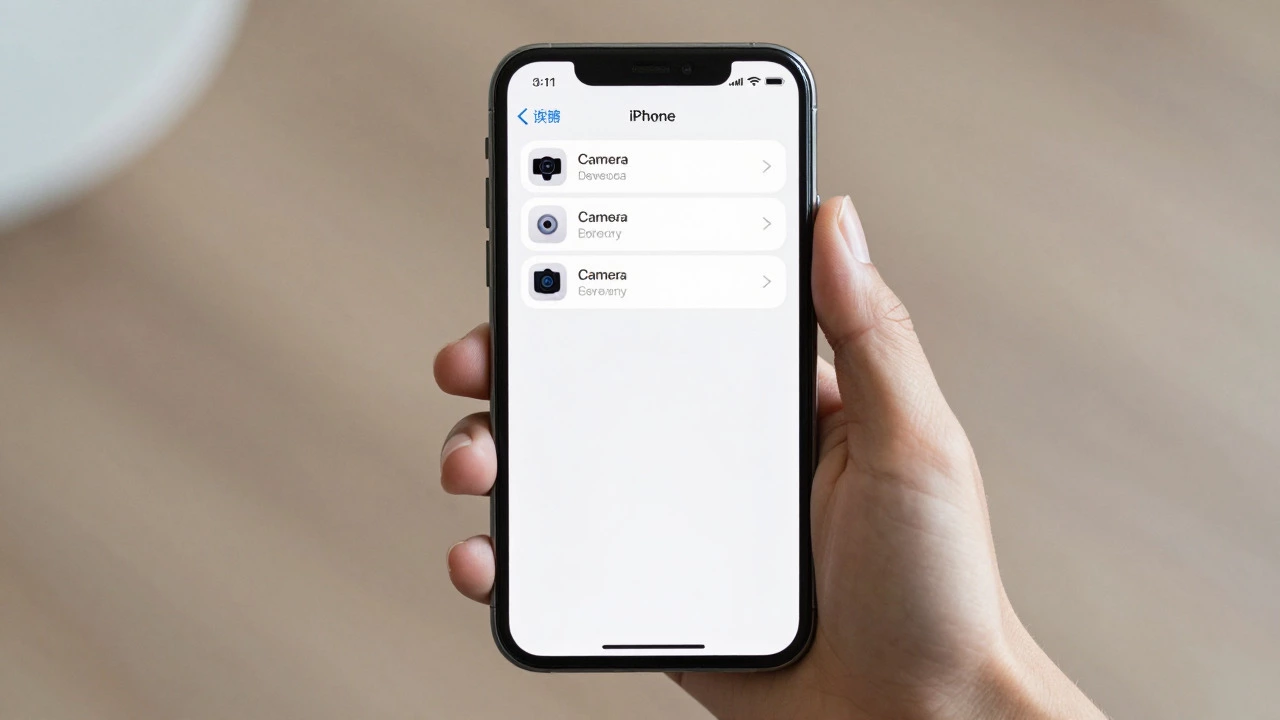
iOS manages privacy through a centralized list. Apple does not show you a live feed of every app trying to peek, but it gives you a complete history of every app that has ever asked for permission. This list is your audit trail.
- Open the Settings app on your iPhone.
- Scroll down and tap Privacy & Security.
- Select Camera from the list of hardware features.
You will now see a list of every app that has requested camera access. Each app has a toggle switch next to it. If the switch is green, that app has permission to use your camera whenever it is open. If it is gray, the app is blocked. Look for apps that shouldn't need a camera-a flashlight app or a simple calculator usually doesn't require one. Toggle them off immediately. This revokes their ability to access the lens until you change your mind.
Checking Camera Access on Android and Samsung Devices
Android handles permissions differently than iOS. Instead of just a yes/no list, Android categorizes apps based on when they can use the camera. This granularity is crucial for spotting background misuse.
To check who has the keys:
- Go to Settings.
- Tap on Privacy (or Security and Privacy on some Samsung models).
- Select Permission manager.
- Tap on Camera.
Here, you will see three distinct sections: "Allowed all the time," "Allowed only while using the app," and "Not allowed." Pay close attention to the "Allowed all the time" section. Very few apps actually need constant camera access. A navigation app might need it for AR directions, but a weather app? Unlikely. If you see an app here that doesn't make sense, tap it and select "Don't allow" or "Allow only while using the app."
Samsung users also have access to the One UI Permission Manager is Samsung's interface for managing app permissions including camera and microphone. within the same menu structure, offering the same level of control plus the aforementioned green dot feature for real-time monitoring.
Securing Your Camera on Windows 10 and 11
Windows treats desktop applications and Microsoft Store apps slightly differently, but the goal is the same: centralize control. Many users don't realize that even if an app asks for permission, Windows can block it globally.
To review who is allowed to look:
- Click the Start button and select Settings (the gear icon).
- Navigate to Privacy & security.
- Click on Camera in the left-hand menu.
At the very top, ensure Camera access is turned On if you want to use the camera at all. Below that, you will see two main toggles: "Let apps access your camera" (for Store apps) and "Let desktop apps access your camera" (for traditional .exe programs). Scroll further down to see a detailed list of individual apps. You can turn off camera access for specific programs like Skype or Teams if you prefer using audio-only calls, effectively blinding them even if they try to activate the lens.
Controlling Camera Access on macOS
Mac users often overlook browser-based camera access, thinking only of native apps. However, web apps like Google Meet or Zoom run inside Safari or Chrome and still need permission.
For native apps:
- Click the Apple menu (top-left corner).
- Select System Settings (or System Preferences on older macOS versions).
- Go to Privacy & Security.
- Click on Camera.
This list shows every installed app that has asked to use the camera. Note that built-in apps like FaceTime and Photo Booth may not appear here because they have automatic access. For third-party apps, uncheck the box next to any program you don't trust. To manage web browsers, open your browser’s specific settings (e.g., Safari > Settings > Websites > Camera) to control site-by-site access.
Why Do Apps Need Camera Access?
Not every request for camera access is malicious. Understanding the legitimate reasons helps you decide whether to grant or deny permission. Common valid uses include:
- Video Conferencing: Zoom, Microsoft Teams, and Google Meet obviously need the camera to show your face.
- Social Media: Instagram, TikTok, and Snapchat require access to record stories and reels.
- Authentication: Banking apps often use the camera for scanning checks or verifying identity via selfie scans.
- Augmented Reality (AR): Games like Pokémon GO or furniture apps like IKEA Place use the camera to overlay digital objects on your real environment.
- Document Scanning: Apps like Adobe Scan or CamScanner use the camera to digitize papers.
If an app falls outside these categories, ask yourself: Does a keyboard app really need to see my room? Probably not. Revoking unnecessary permissions reduces the attack surface for potential data leaks.
| Platform | Real-Time Indicator | Central Permission List Location | Granularity Level |
|---|---|---|---|
| iPhone (iOS) | Green/Yellow Status Dot | Settings > Privacy & Security > Camera | Binary (On/Off per app) |
| Android / Samsung | Green Dot (Samsung) / Notification Shade | Settings > Privacy > Permission Manager | High (Always/While Using/Denied) |
| Windows 10/11 | None Built-In (Relies on App UI) | Settings > Privacy & Security > Camera | Medium (Store vs Desktop Apps) |
| macOS | Red/Green Light (Hardware Dependent) | System Settings > Privacy & Security > Camera | Binary (On/Off per app + Web Sites) |
What to Do If You Find Suspicious Activity
If you discover an app using your camera that you don't recognize or no longer use, take immediate action. First, revoke the permission using the steps above. Second, check when the app was last updated. Outdated apps can contain vulnerabilities that hackers exploit. Third, consider uninstalling the app entirely if it serves no purpose. Finally, run a security scan. While modern OSs sandbox apps well, malware can sometimes persist. Use trusted antivirus software like Malwarebytes or Bitdefender to ensure no hidden processes are lurking.
Remember, privacy is not a one-time setup. New apps get installed, updates change permissions, and habits evolve. Make it a monthly habit to scroll through your camera permission lists. It takes less than five minutes and provides peace of mind knowing that your lens stays closed when you want it to.
How do I know if someone is spying on me through my camera?
Look for physical signs like a blinking LED light on your webcam or a green/yellow dot on your smartphone screen. Additionally, check your battery usage; if your battery drains rapidly while idle, an app might be running in the background. Review your camera permissions in settings to see if unknown apps have access.
Can apps access my camera without my knowledge?
On modern versions of iOS, Android, Windows, and macOS, it is very difficult for apps to access the camera without triggering a system notification or indicator light. However, outdated operating systems or poorly coded apps might bypass some warnings. Always keep your OS updated and regularly review permission settings.
What does the green dot on my phone mean?
A green dot indicates that an app is currently using your camera. On Samsung devices, tapping the dot reveals which app is active. On iPhones, it signals camera usage, though you may need to check settings to identify the specific app if you aren't actively using it.
How do I stop an app from accessing my camera on Android?
Go to Settings > Privacy > Permission Manager > Camera. Find the app in the list and tap on it. Select "Don't allow" to completely block camera access, or choose "Allow only while using the app" to restrict background usage.
Is it safe to give camera permission to banking apps?
Yes, many banking apps require camera access for secure features like mobile check deposit or biometric verification (selfie scans). Ensure the app is downloaded from the official app store and is up to date. Revoke permission if you are not using these specific features.
Yes, many banking apps require camera access for secure features like mobile check deposit or biometric verification (selfie scans). Ensure the app is downloaded from the official app store and is up to date. Revoke permission if you are not using these specific features.