
Ring Doorbell Shared Access Simulator
Step 1: Select Permission Level
Choose the role for the new shared user:
Step 2: Invite User
Shared Users List
Quick Facts
- • Invitations expire after 72 hours
- • Notifications sync within 1.2 - 3.5 seconds
- • No additional subscription cost for shared users
- • Max recommended users: 3-5 devices
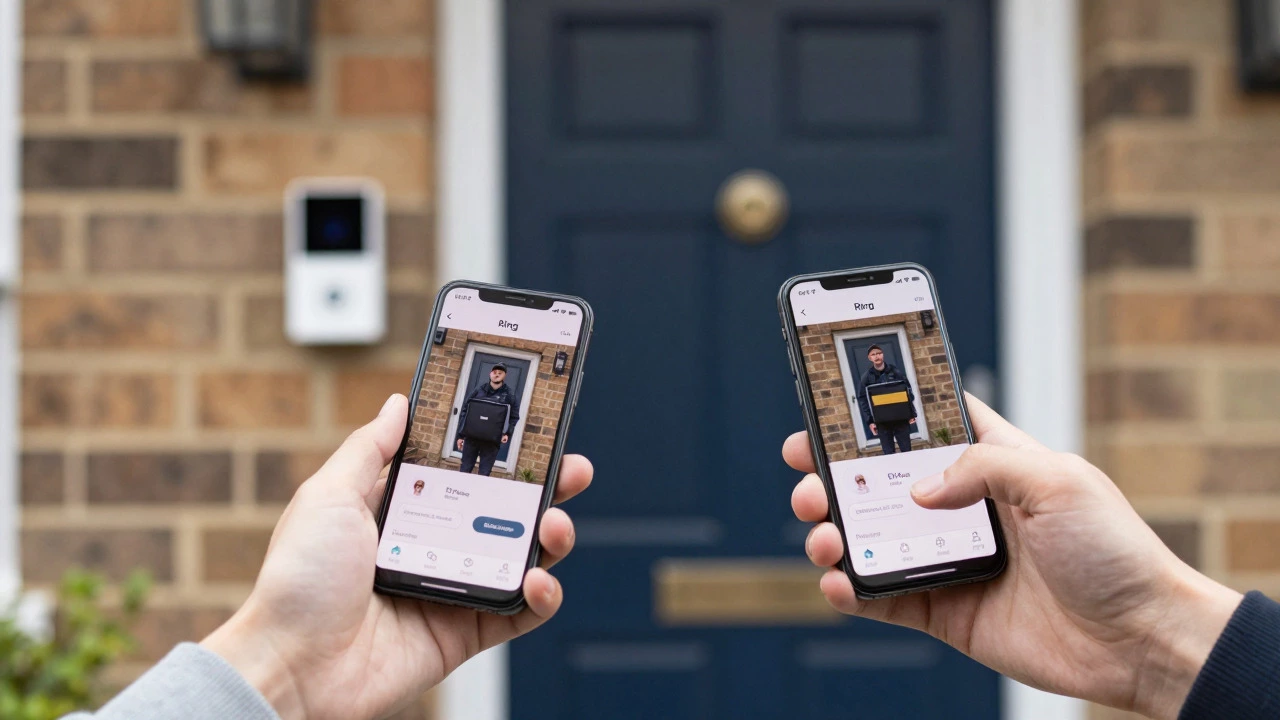
Does your partner keep missing the delivery driver because their phone is on silent? Or maybe you want to share doorbell alerts with a parent or a housemate without handing over your main account password. The short answer is yes-you can absolutely connect a Ring Doorbell to two phones, and even more. In fact, most households use this feature to share access among three or four people. It’s not about cloning your account; it’s about using the built-in "Shared Access" feature correctly.
If you’ve tried logging into your same email address on two different phones, you’ve probably run into trouble. That’s the wrong way to do it. Instead, you need to invite the second person as a "Shared User." This guide walks you through exactly how to set that up, what permissions to assign, and why this method keeps your security settings safe while giving everyone the notifications they need.
How to Add a Second Phone to Your Ring Doorbell
The process relies on the Ring app’s sharing system. Think of your primary account as the "Administrator" and the second phone as a "Guest" with specific keys to the house. Here is the step-by-step process to get both phones ringing at the same time.
- Prepare the Secondary Account: The person who will receive the alerts must have their own Ring account. If they don’t have one, ask them to download the Ring app and sign up for a free account using their own email address. They do not need to own a Ring device to create an account.
- Open Settings on the Primary Phone: Open the Ring app on the phone currently controlling the doorbell. Tap the three lines in the top left corner to open the menu, then select Devices.
- Select Your Doorbell: Tap on your specific Ring Doorbell model from the list.
- Navigate to Shared Access: Scroll down until you see Shared Access. Tap on it. If you haven’t shared access before, you’ll see an option to Add People.
- Invite the User: Enter the email address associated with the secondary user’s Ring account. Hit Send Invite.
- Accept the Invitation: The second person will receive an email invitation. They must open the Ring app on their phone and accept the invite. Note: Invitations expire after 72 hours if not accepted.
Once accepted, both phones will ring simultaneously when someone presses the button. The whole process usually takes less than three minutes. If the email doesn’t arrive, check the spam folder or wait five minutes to resend the invite within the app.
Understanding Permission Levels: Who Sees What?
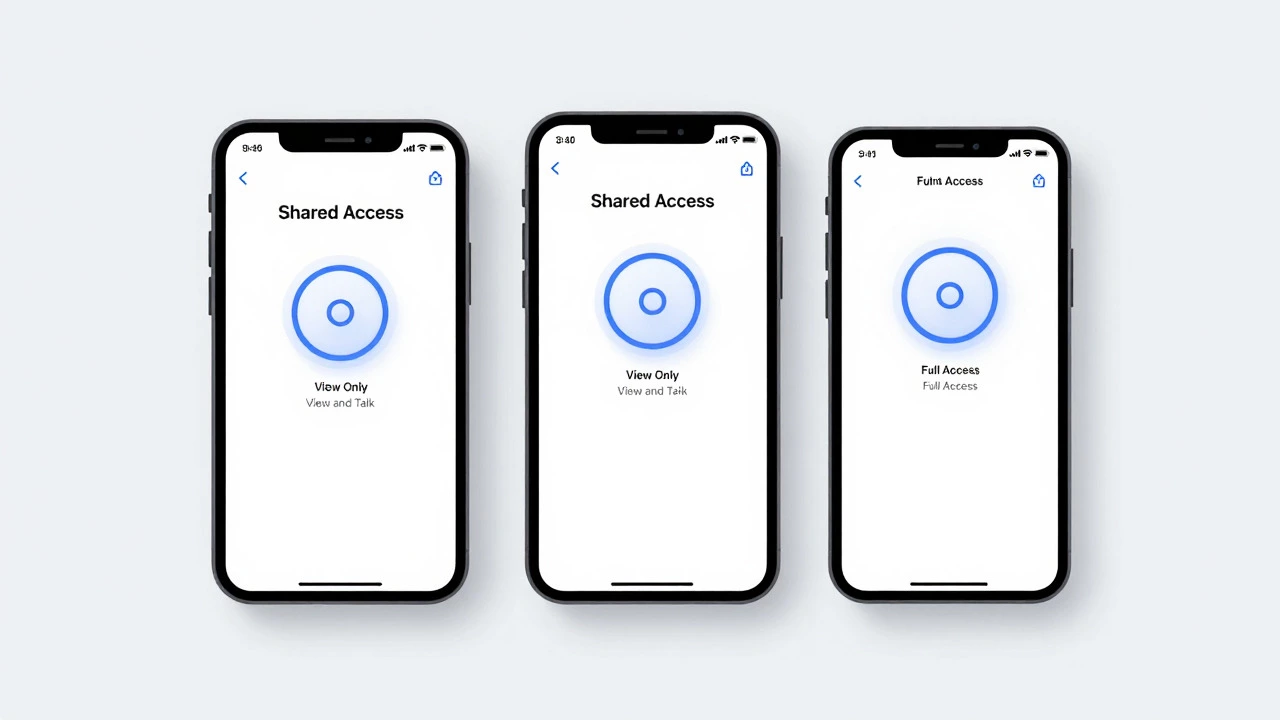
One of the biggest concerns users have is privacy. Do you want the second person to be able to change motion zones? Should they be able to delete old video clips? Ring solves this with granular permission levels. When you add a user, you choose one of three roles:
- View Only: This user can see live view and playback recorded videos but cannot talk back or interact with the device. Good for elderly parents who just need to know who is at the door.
- View and Talk: This allows the user to see the feed and use the two-way talk feature. They still cannot change settings. Ideal for partners or roommates who need to screen deliveries.
- Full Access (except Settings): This gives almost all control, including managing recordings and adjusting motion sensitivity, but prevents them from changing core Wi-Fi settings or removing other users. Best for trusted family members who might need to troubleshoot issues.
As the Administrator, only your phone has full control over the device settings, such as Wi-Fi configuration and firmware updates. This separation ensures that a shared user accidentally tapping a button won’t disconnect your doorbell from the internet.
| Permission Level | Live View | Two-Way Talk | Change Motion Zones | Manage Recordings |
|---|---|---|---|---|
| View Only | ✓ | ✗ | ✗ | ✗ |
| View and Talk | ✓ | ✓ | ✗ | ✗ |
| Full Access | ✓ | ✓ | ✓ | ✓ |
Common Mistakes That Break Multi-Phone Setup
Even though the technology works well, many users hit roadblocks due to simple misunderstandings. Avoiding these common errors will save you frustration.
Mistake #1: Logging into the Same Account on Both Phones
This is the number one cause of issues. If you try to log in with your email and password on a second phone, Ring may flag it as suspicious activity or simply log out the first phone. Always use the "Add People" feature instead of sharing login credentials. Sharing passwords is also a security risk-if that person leaves the household, you have to change your entire account password.
Mistake #2: Forgetting the Secondary User Needs an Account
You cannot share access with a phone number alone. The recipient must have a registered Ring account linked to an email address. If they are tech-averse, help them create the account first before sending the invite.
Mistake #3: Ignoring App Updates
The Ring app requires iOS 14.0+ or Android 8.0+ for basic functionality, but for features like live view sharing, newer versions (iOS 15.0+/Android 10.0+) are recommended. If one phone has an outdated app, the connection might fail or lag significantly.
Why Not Just Share Your Password?
You might wonder why you shouldn’t just give your spouse your login details. While it seems easier, it creates several problems:
- No Control Over Actions: If they log in directly, they have Administrator rights. They could accidentally reset the device, change the Wi-Fi network, or remove other shared users.
- Security Risks: If the relationship ends or the person moves out, you have to change your password everywhere. With Shared Access, you can simply remove their permission with one tap in the app.
- Notification Conflicts: Direct logins can sometimes cause notification delays or duplicates. The Shared User protocol is optimized by Ring’s servers to deliver alerts to multiple devices simultaneously with high synchronization rates.
Experts note that Ring’s shared user system actually outperforms competitors like Nest Hello, which often requires users to share a single Google account, creating similar privacy and control issues. Ring allows distinct identities under one roof.
Troubleshooting Connection Issues
If the second phone isn’t receiving alerts, here is how to fix it quickly:
- Check Notification Settings: On the secondary phone, go to the phone’s system settings > Notifications > Ring. Ensure notifications are allowed and not set to "Silent."
- Verify Internet Connection: The secondary phone needs an active data or Wi-Fi connection to receive push notifications. Test by opening a website.
- Re-send the Invite: Sometimes invites get lost in spam folders. Go to Shared Access on the primary phone, remove the user, and send a fresh invite.
- Update the App: Check the App Store or Google Play Store for the latest version of the Ring app on both devices.
In rare cases, if the issue persists, restarting the Ring app on both phones can clear temporary cache glitches that block sync signals.
Can I connect my Ring Doorbell to more than two phones?
Yes, there is no hard limit on the number of shared users. Most families connect 3 to 5 devices. You can add as many people as you like via the Shared Access menu, provided each person has their own Ring account.
Does the second person need a Ring subscription?
No. The primary administrator pays for the Ring Protect Plan. All shared users automatically benefit from the plan’s features, such as video history and photo capture, without paying extra. This is a major advantage over some competitors who charge per user.
Will both phones ring at the exact same time?
Yes, Ring’s cloud infrastructure is designed to send push notifications to all connected devices simultaneously. Tests show notification delivery happens within 1.2 to 3.5 seconds of motion detection across all shared devices.
Can I remove a shared user later?
Absolutely. As the Administrator, you can remove any shared user instantly from the Shared Access menu. Their access is revoked immediately, and they will no longer receive notifications or see the camera feed.
Do shared users see everything I see?
It depends on the permission level you assign. By default, most users are set to "View and Talk," meaning they see the live feed and recordings but cannot change settings. You can customize this for each person individually.